
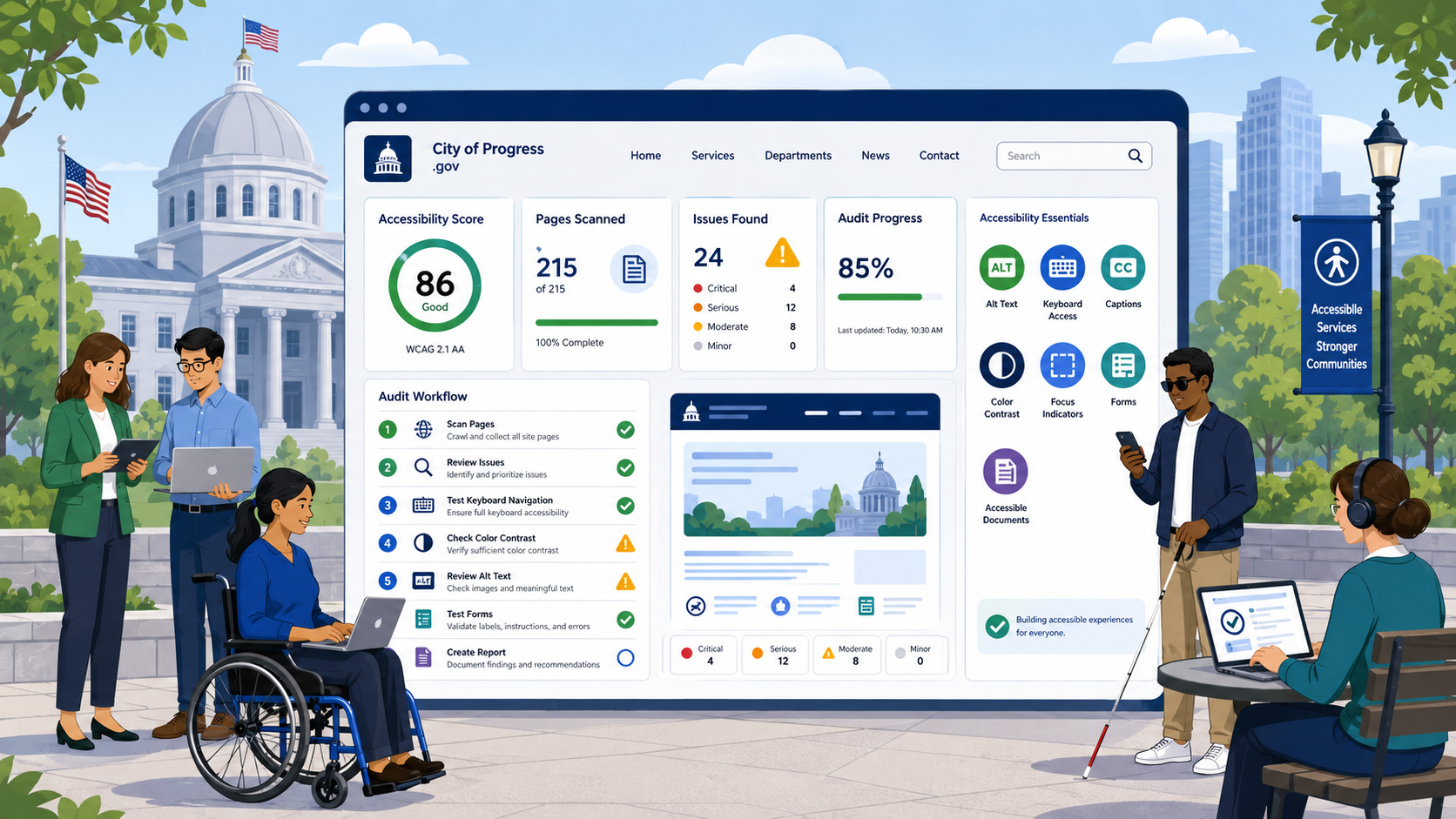
TL;DR: A defensible accessibility audit combines three layers: automated scanning (catches roughly 30 to 40 percent of issues), manual testing with browser tools and keyboard-only navigation, and assistive technology verification with screen readers. Anyone claiming WCAG conformance based on automated scans alone is overstating their position.
The DOJ’s 2024 ADA Title II final rule requires state and local government websites to conform to WCAG 2.1 Level AA. To know whether your agency conforms, someone has to actually test. This guide walks through how to conduct an accessibility audit that produces a defensible conformance claim, what tools to use, what to test in what order, and how to build an issue register that your remediation team can actually act on.
Audit Scope: Decide Before You Start
The first decision is what you are auditing. WCAG conformance is claimed against a defined scope, not a vague “the website.” Define the following before any testing begins:
- The set of URLs in scope. A representative sample, not the entire site, for the initial audit. Typical scope: homepage, top 20 pages by traffic, one page per major template (article, news, form, search results, document library, calendar), key transactional flows (apply for a permit, file a complaint, register for an event), and the accessibility statement page itself.
- The standard and level. Almost always WCAG 2.1 Level AA today, with WCAG 2.2 Level AA increasingly common.
- The browsers and assistive technologies. A reasonable baseline is the latest stable versions of Chrome, Safari, and Edge; NVDA with Firefox on Windows; and VoiceOver with Safari on macOS and iOS.
- The cutoff date. A snapshot in time. Production sites change daily; an audit is valid for the state of the site on the audit date.
Document each decision. The scope statement becomes part of the audit report and supports your eventual conformance claim.
Layer 1: Automated Scanning
Automated tools catch a meaningful portion of accessibility failures — the WebAIM Million project consistently finds that automated testing identifies roughly a third of WCAG failures on a typical page. This makes automation a powerful first pass, but a terrible final answer.
Recommended Tools
- axe DevTools — browser extension, free tier, the most widely cited automated engine
- WAVE — WebAIM’s browser extension, free, visual overlay output
- Lighthouse — built into Chrome DevTools, integrates an axe subset
- Pa11y — open source CLI for crawling
What Automated Tools Find Well
- Missing alt text on images (though not whether existing alt text is meaningful)
- Form fields without programmatic labels
- Low color contrast (with known limitations on gradient backgrounds and text over images)
- Missing document language
- Empty buttons and links
- Invalid ARIA usage
- Duplicate IDs
What Automated Tools Miss
- Whether alt text actually describes the image (a logo with alt text “image” passes automation but fails WCAG)
- Reading order and logical structure
- Whether headings make hierarchical sense
- Keyboard operability of custom widgets
- Focus order and visibility under real use
- Screen reader announcements of dynamic content
- Whether captions on videos are accurate
- Whether color is the only way information is conveyed
Run automated scans across every URL in scope. Export the findings. Then start the manual work.
Layer 2: Manual Testing
Manual testing is where most real findings come from. Test in the following order on each page in scope.
Keyboard-Only Navigation
Unplug your mouse. Use only Tab, Shift+Tab, Enter, Space, and arrow keys. On each page:
- Can you reach every interactive element?
- Is the focus indicator visible at every step?
- Is the focus order logical (matches visual order)?
- Can you operate every widget (menus, accordions, modals, date pickers)?
- Can you escape from modals and overlays?
- Are skip links present and functional?
- Does focus get trapped anywhere unintentionally?
Keyboard testing alone catches a substantial fraction of WCAG failures on custom widgets and forms.
Zoom and Reflow Testing
In a desktop browser, zoom to 400 percent (Ctrl/Cmd + plus). At 400 percent, content must reflow into a single column with no horizontal scrolling, except for content that genuinely requires two dimensions (data tables, maps, code).
Common failures:
- Fixed-width containers that overflow horizontally
- Sticky headers that consume more than 25 percent of the viewport
- Text that gets cut off rather than wrapping
- Buttons or controls that become inaccessible at high zoom
Visual Inspection
Walk through each page looking for:
- Information conveyed by color alone (a red asterisk with no “required” text)
- Color contrast issues the automated tools missed
- Tiny touch targets
- Cluttered focus rings or missing focus indicators
Content Structure
Use a heading outline tool (the HeadingsMap extension is free) to view the document outline. Check:
- Is there exactly one H1 per page?
- Are heading levels nested without skipping (no H2 followed by H4)?
- Does the outline make sense if you read only the headings?
Forms
For every form in scope:
- Is every field labeled, with the label programmatically associated?
- Are required fields indicated in both text and color?
- Are error messages clear, specific, and programmatically linked to the field in error?
- Can the form be completed with keyboard only?
- Does autofill work for common fields (name, email, address)?
- Is information from previous steps remembered (WCAG 2.2’s 3.3.7)?
Layer 3: Assistive Technology Verification
Screen readers do not behave like automated checkers. They interpret pages based on the accessibility tree the browser builds, and small differences in implementation produce wildly different user experiences. Verification with at least one screen reader is mandatory for any defensible conformance claim.
Screen Readers to Use
- NVDA + Firefox or Chrome on Windows — free, the most widely used screen reader for testing, very close to the most common real-user configuration
- VoiceOver + Safari on macOS — built in, mandatory for testing iOS compatibility
- JAWS + Chrome on Windows — paid, still common among older adult and government employee populations
Each page in scope should be navigated with at least one screen reader, listening to:
- The page title (clear and specific?)
- The heading structure (read with H key)
- The landmarks (read with D key)
- Each interactive element’s accessible name and role
- Form fields and their labels, instructions, and errors
- Image alt text in context
- Dynamic content announcements (toasts, validation messages, loading states)
A real screen reader test on a single complex page takes 30 to 60 minutes. A full audit of a typical government site sample takes weeks of focused work.
Building the Issue Register
Every finding goes into a structured issue register. The register is the audit deliverable that drives remediation. Each finding needs:
- A unique ID (AUDIT-001, AUDIT-002, etc.)
- The URL where the issue was found
- The WCAG success criterion that is failed (e.g., 1.1.1 Non-text Content, Level A)
- The component or page area (header, footer, main content, specific form)
- A description of the failure in concrete terms
- A description of the user impact (who is affected, how)
- The test method (automated tool, manual keyboard, NVDA, VoiceOver)
- A screenshot or code excerpt
- A severity rating (see below)
- A proposed remediation
- An owner and target date
Prioritization Framework
Not every issue is equal. A defensible severity rating considers two dimensions:
User Impact
- Critical: Blocks core functionality (cannot complete the permit application, cannot read the main content)
- Serious: Major degradation (must use workaround, slows task significantly)
- Moderate: Inconvenience or confusion but task completable
- Minor: Cosmetic, edge case, or affects rare configurations
Reach
- Site-wide: Appears on every page (header, footer, global navigation)
- Template-wide: Appears on every page of a type (every article page)
- Page-specific: Appears on a single page
A site-wide critical issue (broken skip link, low-contrast global navigation) is the highest priority. A page-specific minor issue is the lowest. Use the two dimensions to build a four-quadrant priority matrix and tackle the high-impact, high-reach issues first.
Understanding Conformance Levels
A WCAG conformance claim has specific technical meaning. “Conforms to WCAG 2.1 Level AA” means:
- Every page in scope satisfies every Level A and AA success criterion, or
- The page provides an accessible alternative that does
You do not get to claim “we conform except for the items in our known limitations list.” You can disclose limitations in your accessibility statement, but a true conformance claim requires actual conformance. This is why “partially conforms” is the realistic claim for most agencies.
Frequency
Run a full audit annually. Run targeted audits on:
- Any new website or major application launch
- Any major redesign
- After any significant CMS or framework upgrade
- After any third-party integration
Between audits, monitor continuously. The accessibility state of a live website degrades constantly as content editors add pages, embed videos, and upload PDFs.
What an Audit Cannot Do
An audit is a snapshot, not a guarantee. It cannot:
- Make future content accessible (only governance and training do that)
- Verify content behind authentication unless explicitly scoped
- Catch issues introduced after the audit date
- Cover every page on a site with thousands of URLs
Pair the audit with ongoing monitoring, content authoring training, and a compliance checklist review cycle. For agencies with limited staff, the small local government accessibility guide shows how to scale this work realistically.
How Govzu Helps
Govzu automates the first audit layer at scale, scanning every page of a government website against WCAG 2.1 and 2.2 Level AA continuously rather than once a year. The platform produces the issue register format described above — issue ID, URL, success criterion, severity, reach, and proposed remediation — so manual auditors can focus their time on the 60 to 70 percent of findings that automation cannot catch. Combined with assistive technology spot checks, Govzu lets agencies maintain a defensible conformance claim between formal audits.