
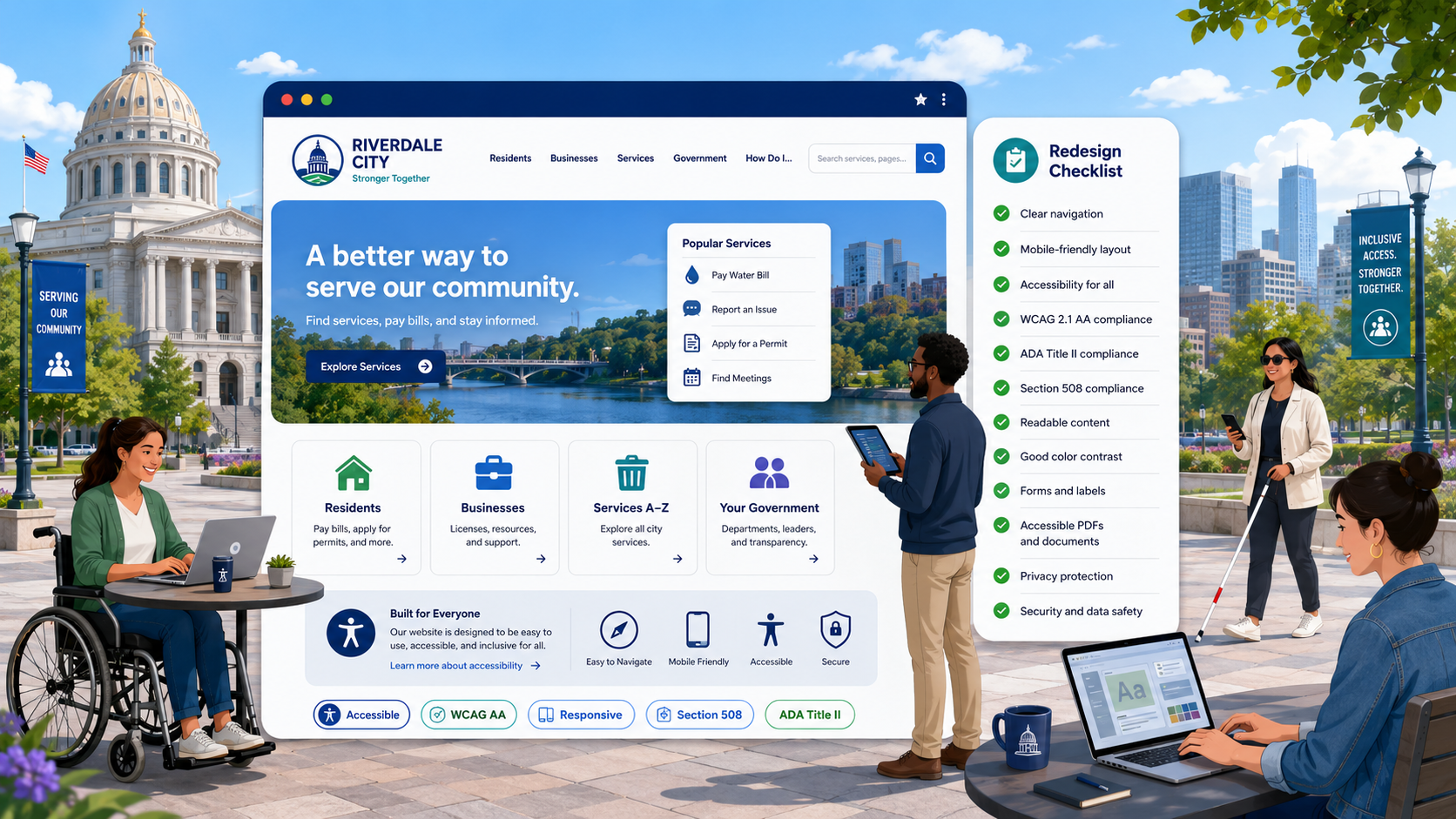
TL;DR: Accessibility costs roughly 10x more to bolt on at the end of a redesign than to bake in from day one. Every redesign should start with an accessible design system (color, typography, components), continue through semantic HTML and keyboard-accessible development, include content migration that fixes alt text and PDF accessibility, use VPATs to screen vendors, validate with disabled-user testing, and launch with monitoring already in place to catch regressions. The DOJ’s 2024 ADA Title II rule makes this non-optional for nearly every state and local government in the US.
A website redesign is the single most expensive thing most government agencies do online - and it is also the best opportunity, sometimes the only opportunity for years, to fix accessibility and compliance. Done well, a redesign produces a site that is accessible, fast, secure, and easier for residents to use, all at once. Done badly, it produces a site that looks modern, fails WCAG, and has to be remediated within 18 months at significant additional cost.
This checklist covers the full lifecycle - discovery, design, development, content migration, vendor selection, testing, launch, and post-launch - with accessibility and compliance treated as load-bearing requirements rather than optional add-ons.
Why “Bolt On at the End” Does Not Work
Most accessibility failures on government sites come from decisions made early in the redesign process: a color palette that fails contrast, a component library built with <div> elements instead of <button> and <a>, a CMS that does not let editors specify heading levels, a vendor video player without captions support. By the time the site is in user acceptance testing, fixing those decisions requires rebuilding the design system - which nobody has time or budget for.
The fix is to treat accessibility as a requirement at every phase, with named owners and explicit acceptance criteria. This checklist is structured to make that easy.
Phase 1: Discovery and Strategy
Define the Conformance Target Explicitly
Write into the RFP and the project charter: “The site will conform to WCAG 2.1 Level AA at launch, with a roadmap to WCAG 2.2 Level AA within 12 months.” Reference the DOJ Title II rule and applicable state law (some states already require WCAG 2.2 or specific state standards).
If the agency is a state government or a federal contractor, also call out Section 508 conformance.
Audit the Current Site
Run a baseline accessibility audit before you redesign anything. You need to know:
- How many pages, PDFs, and other documents are on the current site.
- Which pages get the most traffic.
- Which pages have the highest concentration of accessibility issues.
- Which content is forms-based, which is informational, and which is mostly PDF.
- Which pages contain transactional services that residents depend on.
A real audit (manual plus automated) takes weeks for a large state agency site. See our government website accessibility audit guide for the methodology.
Identify Your Disabled User Testers Early
The single most predictive sign of a successful redesign is that disabled users participate in testing. Identify and engage them - through state councils on disability, university disability services offices, or accessibility consultancies - during discovery, not in the last sprint.
Phase 2: Design System
Color and Contrast
Choose your color palette with WCAG 1.4.3 (Contrast Minimum) and 1.4.11 (Non-text Contrast) in the room. Every text-on-background pairing in the design system must meet 4.5:1 for body text and 3:1 for large text. Every interactive control - buttons, form fields, focus indicators, icons that convey meaning - must meet 3:1 against its background.
Many state and county brand colors fail contrast at default sizes. Be prepared to use brand colors only for accents and large display elements, with body text in a darker shade. See our color contrast guide for government for the math and the common gotchas.
Typography
Pick a body type size of 16px or larger. Confirm the typeface remains legible at 200 percent zoom and reflows to single column at 320 CSS pixels (WCAG 1.4.10, Reflow). Avoid using all-caps for body text or long links; it slows reading for everyone, especially people with dyslexia.
Component Library
Build the component library with accessibility primitives. For each component:
- Document the semantic HTML element it uses (
<button>,<a>,<input>,<dialog>). - Document the keyboard interactions it supports.
- Document the ARIA attributes and how they change with state.
- Provide design tokens for focus indicators that meet 3:1 contrast.
A good test: can the entire component library be navigated and operated with only the keyboard, and does every interactive element have a visible focus indicator?
Forms
Forms are where most government sites lose points. The design system should mandate:
- Visible labels above every input (not placeholder-only).
- Required-field indicators that are not color-only.
- Error messages that are programmatically associated with their fields (
aria-describedby). - Error summaries at the top of long forms.
- Sufficient spacing between touch targets (44x44 CSS pixels, per WCAG 2.5.5).
Phase 3: Development
Semantic HTML First
The single biggest predictor of an accessible site is that the developers reach for the right HTML element first and only use ARIA when necessary. A <button> is accessible by default; a <div role="button"> is one missed JavaScript handler away from a keyboard trap.
Enforce this with code review, with linting (eslint-plugin-jsx-a11y for React, similar tools for other frameworks), and with automated testing in CI.
Keyboard Operability
Every interactive element must be operable from the keyboard. Every modal must trap focus correctly and release it on close. Every menu must be navigable with Tab and Escape. See our keyboard accessibility guide for the full set of patterns.
Screen Reader Testing
Build screen reader testing into the development cycle. Pair developers with NVDA, JAWS, or VoiceOver early so they understand how their components are announced. The cost of teaching a developer to use VoiceOver for 30 minutes pays back across years of more accessible code.
Performance
Bake Core Web Vitals into the development plan. A redesign is the right time to set up image optimization pipelines, font subsetting, CSS budgeting, and third-party script policies.
Security Headers
Configure security headers - HSTS, CSP, X-Frame-Options, X-Content-Type-Options, Referrer-Policy, Permissions-Policy - as part of the base infrastructure. Add them to staging first, then production. Run the staging site through securityheaders.com as part of CI.
Phase 4: Content Migration
Content migration is where most redesign accessibility wins are won or lost. A new accessible template that gets filled with old inaccessible content is not an accessible site.
Alt Text
Every image needs accessible alt text. The migration is your one chance to fix this at scale. For each image:
- Decorative images get
alt="". - Informational images get descriptive alt text.
- Functional images (image buttons, image links) get alt text describing the function.
- Charts and graphs need either descriptive alt text or a text alternative nearby.
For mass migrations, use AI-assisted alt text as a starting point and have content editors review. See our missing alt text guide for patterns.
Heading Structure
Audit headings as you migrate. Every page should have one <h1>. Heading levels should not skip (no jumping from <h2> to <h4>). The heading outline should reflect the document structure.
Link Text
Replace “click here,” “read more,” and “PDF” with descriptive link text. Each link should make sense out of context, since screen reader users often navigate by jumping between links.
PDF Remediation
PDFs are often the single largest accessibility liability on a government site. Use the redesign to:
- Identify every PDF on the existing site.
- Determine which are still in use.
- Retire or replace what you can with HTML.
- Remediate or replace the rest with tagged, accessible PDFs.
This is often a multi-month project on its own. Start it during content migration, not at the end.
Video Content
Audit every video. Confirm captions are accurate and complete (not just YouTube auto-captions). Add transcripts for audio-only content. Add audio description for videos where visual content carries information not in the soundtrack. See the video accessibility guide for the full requirements.
Phase 5: Vendor and CMS Selection
Require VPATs
Every vendor whose product will be part of the site - CMS, hosting, video, search, chatbot, payment processor, online forms platform - must provide a current Voluntary Product Accessibility Template (VPAT) / Accessibility Conformance Report (ACR).
A VPAT is not a guarantee, but its absence is a red flag. A VPAT from 2017 is also a red flag.
Evaluate, Do Not Just Collect
For each VPAT, look at the “Remarks and Explanations” column for the criteria the vendor marks as “Partially Supports” or “Supports with exceptions.” Map those exceptions against your use cases. A CMS that “supports” 1.3.1 (Info and Relationships) with the exception “WYSIWYG editor may produce non-semantic markup if used incorrectly” is telling you that editor training and templates will determine your accessibility.
Test the Demo
Insist on a working demo with real content, and test it with a keyboard and a screen reader before signing. A vendor who cannot let you test the actual product is not ready for a public-sector contract.
Contract Language
Put accessibility requirements into the contract:
- Conformance to WCAG 2.1 Level AA at delivery and throughout the contract term.
- Notification of any accessibility regressions in updates.
- A defined remediation timeline for any non-conformance.
- The agency’s right to test and to require remediation at the vendor’s cost.
Phase 6: Testing
Automated Testing
Run axe, Lighthouse, or WAVE on every page template and every key flow. Automated testing finds about 30 to 40 percent of WCAG issues but does so cheaply and repeatedly.
Manual Testing
Manual testing catches what automation misses:
- Keyboard-only walkthroughs of every key flow.
- Screen reader walkthroughs with NVDA, JAWS, and VoiceOver.
- Zoom testing at 200 percent and 400 percent.
- Color contrast checks on screenshots and in design tools.
- Mobile screen reader testing with TalkBack and VoiceOver iOS.
User Acceptance Testing with Disabled Users
Engage at least three disabled users - ideally including a screen reader user, a keyboard-only user, and a low-vision user - to complete the most important tasks on the site (find an office, submit a form, pay a bill, access a public notice). Their feedback is more valuable than any audit report.
Performance and Security Testing
Run Lighthouse for Core Web Vitals. Run securityheaders.com and Mozilla Observatory for security headers. Run SSL Labs for TLS configuration.
Phase 7: Launch
Pre-Launch Checklist
- All template pages pass automated accessibility scans with no critical or serious issues.
- Manual keyboard and screen reader testing complete for all critical flows.
- All PDFs in priority categories are remediated or replaced.
- All videos have accurate captions; informational audio has transcripts.
- All forms have visible labels, error handling, and required-field indicators.
- All security headers are configured and tested.
- HTTPS is enforced on all subdomains; HSTS configured (preload only after subdomain audit).
- Privacy policy, accessibility statement, and cookie banner are published.
- Analytics, redirects, and search are configured.
- Monitoring is live before the site is.
Accessibility Statement
Publish an accessibility statement linked from the global footer. Include the standard you conform to, known issues with timelines, how to report problems, and contact information. See our accessibility statement guide for a template and best practices.
Communicate Internally
Train content editors before launch on heading structure, link text, alt text, accessible PDFs, and how to use the CMS without breaking accessibility. The most accessible templates in the world fail if editors paste in HTML widgets that bypass them.
Phase 8: Post-Launch
Monitor Continuously
Accessibility is not a launch state; it is an ongoing property. Every CMS plugin update, every new vendor widget, every content edit by a department user has the potential to break what you just built. Set up continuous monitoring before the site goes live so you have a baseline and can catch regressions immediately.
Maintain the Accessibility Statement
Update the statement whenever a known issue is fixed or a new one is identified. Treat reported issues as bug reports with defined SLAs, not customer service complaints.
Plan for WCAG 2.2
The DOJ rule references WCAG 2.1. WCAG 2.2 is already the most current version and is likely to become the next reference. Plan to meet WCAG 2.2 Level AA within 12 to 18 months of launch.
Year-One Audit
Schedule a comprehensive accessibility audit 9 to 12 months after launch. This catches the drift that inevitably accumulates and demonstrates good faith if a complaint is filed.
What This Looks Like in Practice
A well-run state agency redesign in 2025 looked something like this:
- Discovery: 8 weeks, including a baseline accessibility audit and engagement of three disability advocacy groups for testing.
- Design system: 12 weeks, with accessibility specialists on the design team and a documented component library.
- Development: 24 weeks, with axe-core in CI, monthly screen reader testing, and a “no merge without accessibility review” policy for new components.
- Content migration: 16 weeks, running parallel to development, with editors trained and PDFs prioritized.
- Testing: 8 weeks, including disabled-user UAT and a third-party audit.
- Launch: a one-week cutover with monitoring already running.
- Post-launch: continuous accessibility monitoring, quarterly content audits, and an annual third-party audit.
Total elapsed time: about 14 months. Total cost: 10 to 30 percent higher than a redesign that ignored accessibility - and 60 to 80 percent cheaper than a redesign that ignored accessibility and then had to be remediated under a DOJ consent decree.
Keep What You Built
The hardest part of a redesign is keeping it accessible after launch. Vendor updates, departmental edits, new embeds, and ordinary content churn will quietly erode the gains you made unless you watch for it.
Govzu continuously monitors government websites for accessibility, performance, security header, and privacy regressions across every page, every PDF, and every vendor embed - so the investment you made in your redesign keeps paying back, and your team is the first to know when something drifts.