
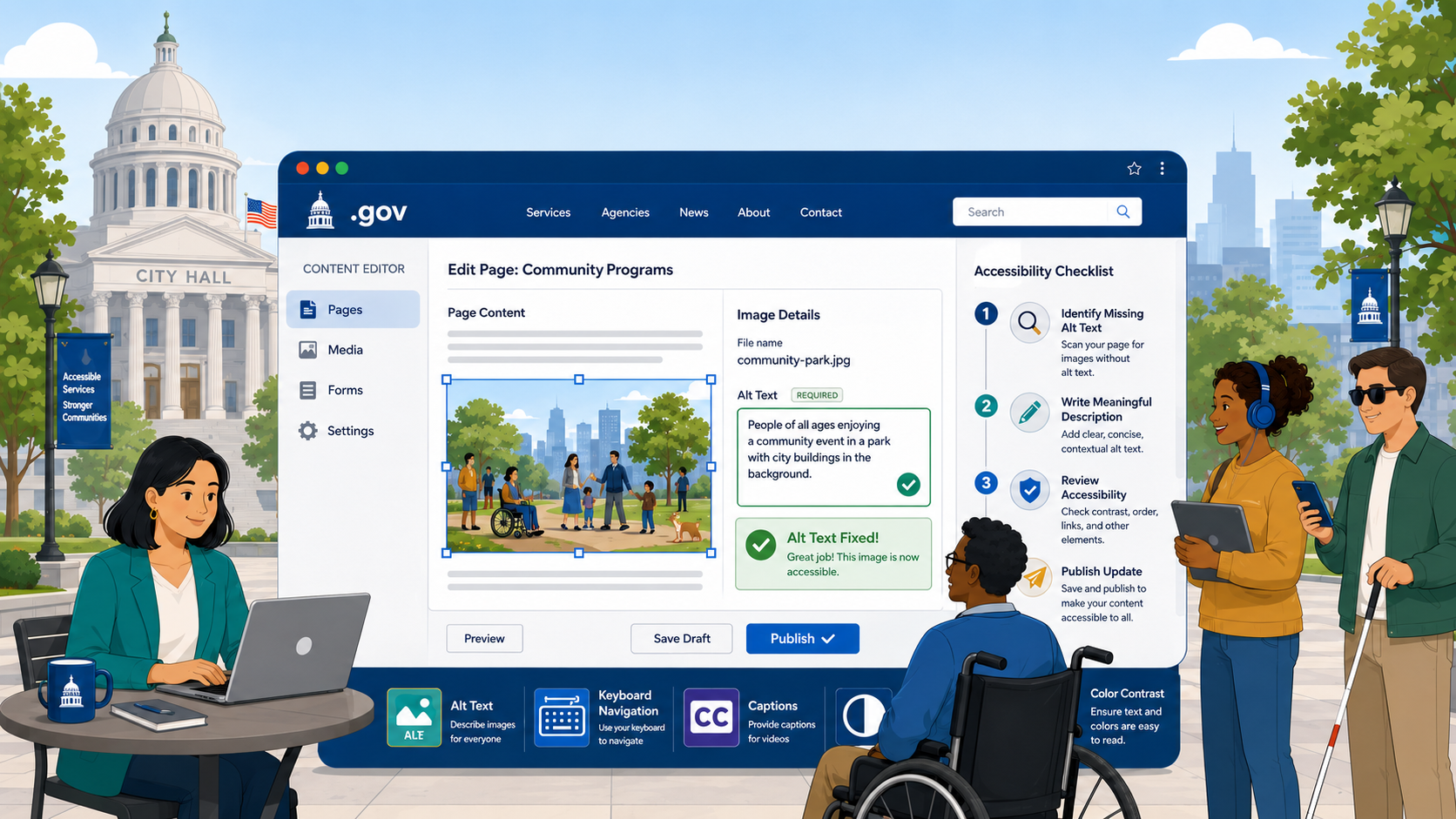
TL;DR: Alt text is a text alternative for images that screen readers read aloud. WCAG 1.1.1 requires all non-decorative images to have meaningful alt text. Decorative images should have an empty alt attribute (
alt=""), not a missing one. Good alt text describes what the image communicates, not what it looks like. Tools like WAVE, axe, and Govzu can identify missing alt text at scale; writing good alt text requires human judgment.
Missing alt text is consistently one of the top five WCAG failures found on government websites facing ADA Title II compliance deadlines. It’s easy to detect, often easy to fix, and has an immediate, significant impact on users who rely on screen readers. And yet government sites — particularly older pages, legacy PDFs, and content published by non-technical staff — accumulate missing and inadequate alt text at a steady rate.
Here is a complete guide to understanding, finding, and fixing alt text problems on a government website.
What Alt Text Is and Why It Matters
Alt text — the alt attribute in an HTML <img> element — is a text alternative for visual image content. When a screen reader encounters an image, it reads the alt text aloud. If there is no alt text, the screen reader typically reads the file name instead (often something like “DSC00394.jpg” or “city_seal_v2_final_FINAL.png”), which is useless. Some screen readers skip images entirely when alt text is missing.
The WCAG requirement is Success Criterion 1.1.1: Non-text Content (Level A), part of the WCAG 2.2 AA standard government websites must meet. Level A means this is a minimum requirement — a baseline failure, not an edge case. The criterion states:
All non-text content that is presented to the user has a text alternative that serves the equivalent purpose.
“Serves the equivalent purpose” is the operative phrase. The goal of alt text is not to describe what the image looks like — it’s to communicate what the image is there to communicate.
A person using a screen reader should get the same information and serve the same function as a sighted person who can see the image. If a sighted person looks at an image and learns something — who this is, what this chart shows, what this map depicts — the screen reader user should learn that same thing from the alt text.
Meaningful Images vs. Decorative Images
Not all images need descriptive alt text. WCAG distinguishes between two categories:
Meaningful images convey information, serve a function, or are the only way certain content is presented. These require descriptive alt text.
Decorative images are purely visual — they add aesthetic value but don’t convey information that isn’t already present in adjacent text. These should have an empty alt attribute: alt="". This signals to screen readers to skip the image entirely, which is the correct behavior.
The empty alt attribute (alt="") is not the same as a missing alt attribute. A missing alt attribute is a WCAG failure. An empty alt attribute on a genuinely decorative image is correct.
How to decide: Ask yourself — if this image were removed from the page, would any information be lost? If the answer is no, it’s decorative. If yes, it needs alt text.
Common decorative images on government sites:
- Horizontal divider lines
- Background textures or patterns used as visual breaks
- Repeating design elements like dots or borders in the page template
- Stock photography used purely for visual appeal alongside text that covers the same topic
Common meaningful images on government sites:
- The city or county seal (identifies the jurisdiction)
- Staff and official photos (context for who is speaking or being referenced)
- Maps showing service areas, project locations, or routes
- Charts and graphs presenting data
- Infographics
- Scanned signatures on official documents
- QR codes
- CAPTCHA images
How to Write Good Alt Text
There is no single formula, because what counts as good alt text depends entirely on the context and purpose of the image. But several principles apply consistently.
Describe function and content, not appearance
Alt text should communicate what the image means in context, not produce a visual description.
Bad: alt="Photograph of a man in a suit standing in front of a building"
Good: alt="Mayor James Alvarez, City of Riverdale"
Bad: alt="Bar chart image"
Good: alt="Bar chart showing city budget allocations for fiscal year 2026, with public safety receiving the largest share at 38%"
Be concise but complete
Alt text doesn’t have a hard character limit, but screen readers read it inline with surrounding content. Very long alt text disrupts reading flow. Aim for the minimum text needed to convey the content — typically one to two sentences for most images. For complex images like charts and infographics, use a short alt text paired with a longer text description (covered below).
Don’t start with “Image of” or “Photo of”
Screen readers already announce that the element is an image. Starting with “Image of” is redundant and wastes the listener’s time.
Don’t repeat the adjacent caption
If an image has a visible caption that fully describes its content, the alt text can be brief or even empty (if the caption is part of the same semantic unit). Don’t duplicate the caption word-for-word in the alt attribute — screen reader users will hear the same text twice.
Linked images: describe the destination, not the image
When an image is wrapped in a link, the alt text serves as the link text. It should describe where the link goes, not describe the image.
Bad: <a href="/permits"><img src="permits-icon.png" alt="Yellow folder icon"></a>
Good: <a href="/permits"><img src="permits-icon.png" alt="Apply for a permit"></a>
Government-Specific Alt Text Examples
Here are common image types on government sites, with examples of inadequate and good alt text.
City or county seal
- Inadequate:
alt="seal.png"oralt="" - Good:
alt="Official Seal of Riverside County"
Map of a service area
- Inadequate:
alt="Map" - Good:
alt="Map of District 4 Council boundaries, bounded by Elm Street to the north, Highway 101 to the south, Oak Avenue to the east, and the river to the west"
Bar chart in a budget document
- Inadequate:
alt="Chart" - Good:
alt="Bar chart comparing department budgets from 2024 to 2026. Public Works increased from $4.2M to $5.1M. Parks and Recreation decreased from $2.8M to $2.3M."(Or:alt="Budget comparison chart, 2024–2026"paired with a visible data table.)
Infographic explaining a permit process
- Inadequate:
alt="Permit process infographic" - Good: A brief alt text like
alt="Steps to apply for a building permit"paired with a detailed text description of all steps.
Photo of the mayor
- Inadequate:
alt="Photo" - Good:
alt="Mayor Sandra Okello, elected 2022"
Handling Complex Images: Charts and Infographics
Charts, graphs, and infographics present a special challenge because they typically contain more information than can reasonably fit in an alt attribute.
The recommended approach is to provide a short alt text that identifies the image type and topic, paired with a detailed text description of the data or content. There are several ways to provide the long description:
- Visible text on the page: Present the data in a table or prose below the image. This is accessible to everyone and good practice generally.
aria-describedby: Point the image element to another element on the page that contains the long description. The description element can be visually hidden if needed.<figure>and<figcaption>: Wrap the image and its description in a<figure>element with a<figcaption>. Note that<figcaption>alone does not substitute for analtattribute.- Linked description: Provide a link adjacent to the image to a separate page or expandable region containing the full description.
For government charts containing official data, a visible data table is almost always the right answer — it’s accessible, it’s printable, and it can be copied and cited by journalists, researchers, and constituents.
How to Find Missing Alt Text on Your Site
Browser developer tools
Right-click any image in a browser, select “Inspect,” and look at the <img> element. Check whether an alt attribute is present and whether its value is descriptive. This is useful for spot-checking specific pages but not practical for a full audit.
WAVE (Web Accessibility Evaluation Tool)
The WAVE browser extension (available for Chrome and Firefox, free) annotates pages with accessibility errors, including missing alt text (red icons) and suspicious alt text patterns. It’s excellent for page-by-page manual review.
axe DevTools
The axe browser extension (free tier available for Chrome and Firefox) runs automated WCAG checks, including alt text failures. The commercial version integrates into CI/CD pipelines and Figma. axe reports are well-structured for developer handoff.
Govzu
Govzu crawls your entire government website and surfaces alt text failures at scale — including newly published pages that introduce regressions after your initial remediation. Continuous monitoring means you catch the issue when a staff member publishes a photo without alt text, not six months later when you run the next audit.
CMS-Specific Guidance
Most government websites run on WordPress, Drupal, or a state/county-specific CMS. Here’s how to add alt text in the most common platforms.
WordPress
When uploading an image through the Media Library, the “Alt Text” field is in the right sidebar of the attachment details screen. When inserting an image into a post or page via the block editor, alt text is in the right sidebar under “Image Settings.” The field is labeled “Alternative Text.”
Important: WordPress distinguishes between the “Title” and “Alt Text” fields. The title is metadata used internally — it is not the alt attribute. Make sure you’re filling in the “Alt Text” field specifically.
Drupal
In Drupal, when a content editor inserts an image using the media library, the “Alternative text” field appears in the image insertion dialog. Drupal can be configured to require alt text before an image can be saved, which is a useful enforcement mechanism for sites with many content contributors.
Squarespace
In Squarespace, click an image block to open its settings, then find the “Alt Text” field in the “Design” or “Image” tab. Note that Squarespace’s handling of decorative images (empty alt) is limited — use their “Decorative image” checkbox if available in your version.
What About PDFs?
Alt text in PDFs is fundamentally different from HTML alt text and requires separate attention.
PDFs that are scanned images — a common situation for government meeting minutes, signed contracts, and older reports — are essentially photographs of documents. They contain no accessible text at all. Screen readers cannot read them. These documents require full remediation using optical character recognition (OCR) to convert them to tagged PDF or another accessible format.
PDFs that are born digital (created in Word, InDesign, or directly in Acrobat) can contain tagged structure that makes them accessible, including alt text for images. To add or check alt text in a PDF using Adobe Acrobat Pro:
- Open the PDF in Acrobat Pro
- Go to View > Show/Hide > Navigation Panes > Tags
- Find the image element in the tag tree (
<Figure>) - Right-click the tag, select Properties, and add or edit the “Alternate Text” field
For large volumes of inaccessible PDFs, consider using PDF remediation software. Alt text is just one item on the government website compliance checklist — after addressing images, review your forms, keyboard navigation, and security posture. (CommonLook, Equidox, or axesPDF) or engaging a specialist. Prioritize documents that are actively used — current forms, recent reports, active meeting agendas — before archiving older documents.
Common Exceptions and Edge Cases
Logos: Logos need alt text. The name of the organization is sufficient: alt="City of Springdale". Do not use alt="" on a logo — it is a meaningful image that identifies the organization.
CAPTCHA: CAPTCHA images require an alt text that identifies the purpose (alt="CAPTCHA: enter the characters shown") and must always be accompanied by an audio alternative. Better practice is to replace image CAPTCHA entirely — WCAG 2.2 SC 3.3.8 restricts cognitive function tests in authentication flows.
Decorative icons in links or buttons: If an icon is inside a button or link that also contains visible text that describes the action, the icon is decorative and should have alt="" or aria-hidden="true". If the icon is the only content in a button or link, it needs alt text or an aria-label.
Alt text is one of the most straightforward accessibility requirements to understand — and one of the most commonly neglected on government sites, largely because content is published continuously by many contributors who may not know the requirement exists. Training content editors, configuring your CMS to require alt text fields, and using automated monitoring are the three levers that create lasting improvement. Govzu can monitor your site continuously, alerting your team when new images are published without alt text before they become a complaint.