
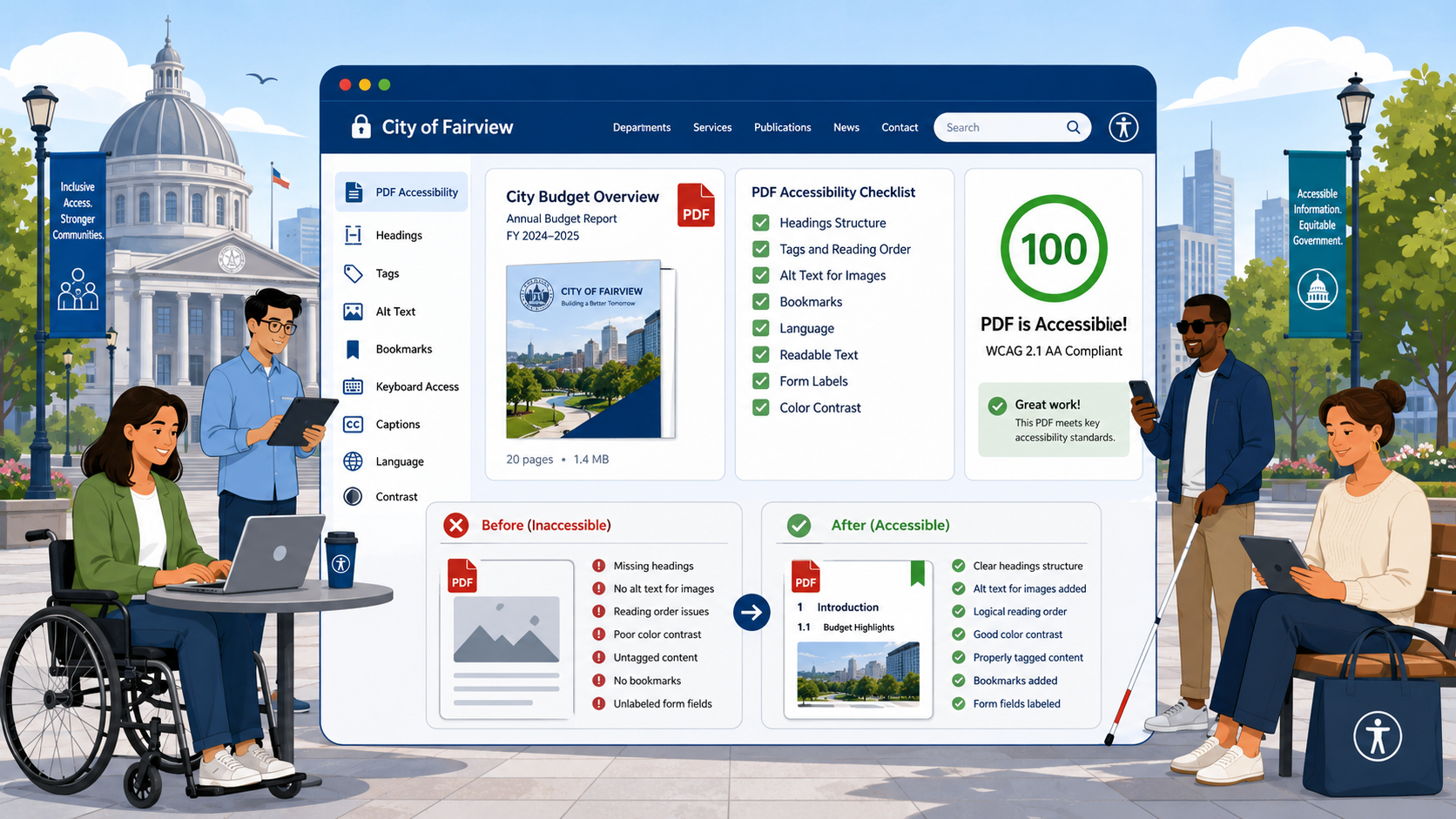
TL;DR: PDFs are subject to the same WCAG 2.1 Level AA requirements as HTML pages under the DOJ’s 2024 ADA Title II rule. Most government PDFs fail because they were exported from Word without tagging, scanned from paper without OCR, or built in InDesign without a reading-order pass. The fastest path to compliance is usually to publish in HTML and offer the PDF as an alternative — not the other way around.
The average state agency website hosts tens of thousands of PDFs. The average county website hosts thousands. Under the DOJ’s 2024 ADA Title II final rule, every one of those PDFs that is published on or after the compliance date — April 24, 2026 for entities with 50,000 or more residents — must conform to WCAG 2.1 Level AA. Archived PDFs are subject to a narrow exception, but only if they meet specific criteria. For most agencies, PDFs are the single largest source of accessibility risk.
This guide walks through what makes a PDF accessible, how to produce accessible PDFs from common source applications, how to remediate scanned documents, and when to abandon PDF altogether in favor of HTML.
Why PDFs Are Hard
PDF was designed in the early 1990s as a fixed-layout format for printing. Accessibility was added later through a parallel “tagged PDF” structure that mirrors the visual content with a semantic tree of headings, paragraphs, lists, tables, and figures. An untagged PDF is invisible to assistive technology: a screen reader sees either nothing or a jumbled stream of characters with no reading order, no headings, and no alt text.
The most common failure modes on government PDFs are:
- Scanned documents with no OCR layer (the file is an image, not text)
- Word documents exported with “Save As PDF” without enabling tagging
- Forms with no fillable fields and no labeled controls
- Tables built with tabs and spaces instead of actual table structure
- Documents with no defined language, document title, or reading order
- Images of charts, signatures, or seals with no alt text
Each of these is a WCAG failure. Each is also fixable, though some take a lot longer than others.
The Anatomy of an Accessible PDF
A conforming PDF has the following structural features. These map directly to WCAG 2.1 success criteria and to the PDF/UA-1 standard (ISO 14289-1), which is the technical specification regulators and auditors reference.
Document-Level Properties
- A descriptive document title set in the file’s metadata (not just the filename)
- A primary language declared (e.g., “en-US”)
- The “Tagged PDF” flag set to true
- A logical reading order defined in the tag tree
Content Structure
- Headings tagged as H1, H2, H3 with no skipped levels
- Paragraphs tagged as P
- Lists tagged as L with LI and Lbl/LBody children
- Tables tagged as Table with TR, TH, and TD, with column and row scope where applicable
- Images tagged as Figure with alt text, or marked as artifact if purely decorative
- Links tagged as Link with descriptive accessible names
Forms
- Each form field has an accessible name
- Required fields are marked as required
- Tab order matches visual order
- Error messages are programmatically associated with the field in error
Color and Contrast
- Text meets the 4.5:1 contrast ratio at normal size, 3:1 at large size
- Information is not conveyed by color alone
Creating Accessible PDFs from Microsoft Word
Word is the source for the vast majority of government PDFs. The good news is that a properly structured Word document exports to a tagged PDF with reasonable accessibility. The bad news is that “properly structured” excludes most of what staff actually produce.
Word Authoring Checklist
- Use built-in heading styles (Heading 1, Heading 2, etc.) — never bold + larger font
- Use the built-in list styles for bulleted and numbered lists
- Insert tables using Insert > Table, mark the header row, and avoid merged cells where possible
- Add alt text to every image (right-click > View Alt Text)
- Use the built-in hyperlink feature with descriptive link text — not “click here”
- Set the document language under Review > Language
- Set the document title under File > Info > Properties
- Run the Accessibility Checker (Review > Check Accessibility) and resolve every issue
Export Settings
When saving as PDF, use File > Save As > PDF and click Options. Ensure:
- “Document structure tags for accessibility” is checked
- “Document properties” is checked
- “Bitmap text when fonts may not be embedded” is unchecked
Do not use “Print to PDF” or third-party PDF printers — these almost always strip tags.
Creating Accessible PDFs from Adobe InDesign
InDesign is used for designed publications: budget books, annual reports, board agendas. It can produce excellent tagged PDFs, but requires explicit configuration:
- Use paragraph styles mapped to PDF tags via Edit > All Export Tags
- Define the article order in the Articles panel and check “Use for Reading Order in Tagged PDF”
- Add alt text to every placed image via Object > Object Export Options
- On export, choose “Adobe PDF (Interactive)” or “Adobe PDF (Print)” and check Create Tagged PDF, Create Bookmarks, and Export Articles
Remediating Scanned PDFs
A scanned PDF is an image of text, not text. Assistive technology sees nothing. Remediation requires three steps:
Step 1: OCR
Open the PDF in Adobe Acrobat Pro and run Scan & OCR > Recognize Text > In This File. Choose Searchable Image (Exact) to preserve the visual appearance while adding a text layer. Verify accuracy on a representative sample of pages — OCR struggles with old typefaces, low-resolution scans, and handwritten content.
Step 2: Tagging
Run Accessibility > Autotag Document. This produces a tag tree, but the output is almost never correct on the first pass. You will need to:
- Reorder tags to match logical reading order
- Promote correct headings (autotag tends to over-tag headings or miss them)
- Fix table structure
- Add alt text to images
- Mark decorative elements as artifacts
Step 3: Verification
Run Accessibility > Accessibility Check. Resolve every issue. Then verify with a screen reader — NVDA on Windows is free and is the de facto standard for PDF testing.
A full remediation of a scanned 50-page document typically takes a trained remediator 4 to 8 hours. This is the central reason most agencies cannot remediate their entire PDF backlog by April 2026.
The Archived Content Exception
The DOJ rule includes a limited exception for “archived web content,” defined narrowly. To qualify, the content must meet all of the following:
- Created before the compliance date, or reproduces a paper document created before the compliance date
- Kept only for reference, research, or recordkeeping
- Stored in a special area of the website clearly identified as archived
- Not changed after being archived
Not all old PDFs qualify. A budget document from 2018 that staff still link to from the current budget page is not archived — it is in active use. A meeting agenda from 2010 stored in an “Archives” section that no one references for current decisions probably is.
If a member of the public requests an archived document in accessible form, the agency must provide it. Build a request and remediation workflow before the deadline, not after.
When to Use HTML Instead
For most government content, the right answer is not “make the PDF accessible” — it is “publish in HTML and offer the PDF as a download.” HTML is easier to make accessible, easier to update, easier to search, easier to translate, and works better on mobile.
Strong candidates for HTML-first publication:
- Frequently updated content (forms, schedules, fee tables)
- Content that needs to be searchable on the site
- Content that exists as a web page elsewhere
- Short documents (under a few pages)
- Content that requires translation
PDF is appropriate when the content has a fixed printed form that must be preserved (court filings, certified documents, designed publications intended for print). Even then, the accessibility requirement applies.
Building a Sustainable PDF Program
Reactive remediation is expensive and never catches up. Agencies that succeed long-term build PDF governance into their content workflows:
- Train every staff member who produces PDFs in accessible authoring
- Require an accessibility check before any PDF is uploaded
- Maintain an inventory of PDFs with publication date, owner, and last accessibility review date
- Set a policy: HTML by default, PDF by exception
- Establish a remediation queue for legacy content, prioritized by traffic
- Include PDF accessibility in your overall website compliance checklist
Testing Tools
Free and low-cost tools for PDF accessibility testing:
- PAC 2024 (PDF Accessibility Checker) — free, the industry-standard automated PDF checker
- Adobe Acrobat Pro Accessibility Check — paid, integrated with remediation tools
- NVDA — free Windows screen reader, essential for verifying real user experience
- VoiceOver — built into macOS, useful for cross-platform verification
Automated tools catch tagging and metadata problems. They do not catch reading order errors, incorrect heading levels, or bad alt text. Manual testing with a screen reader is non-negotiable.
How Govzu Helps
Govzu crawls every PDF linked from your government website, identifies which are tagged, which contain a text layer, which have document titles and language metadata, and which are missing accessibility features. The platform builds a prioritized remediation queue based on page traffic and link depth, flags newly published PDFs that fail accessibility checks before they accumulate into a backlog, and tracks remediation progress against the April 2026 deadline — so PDF accessibility stops being the largest hidden liability in your compliance program.