
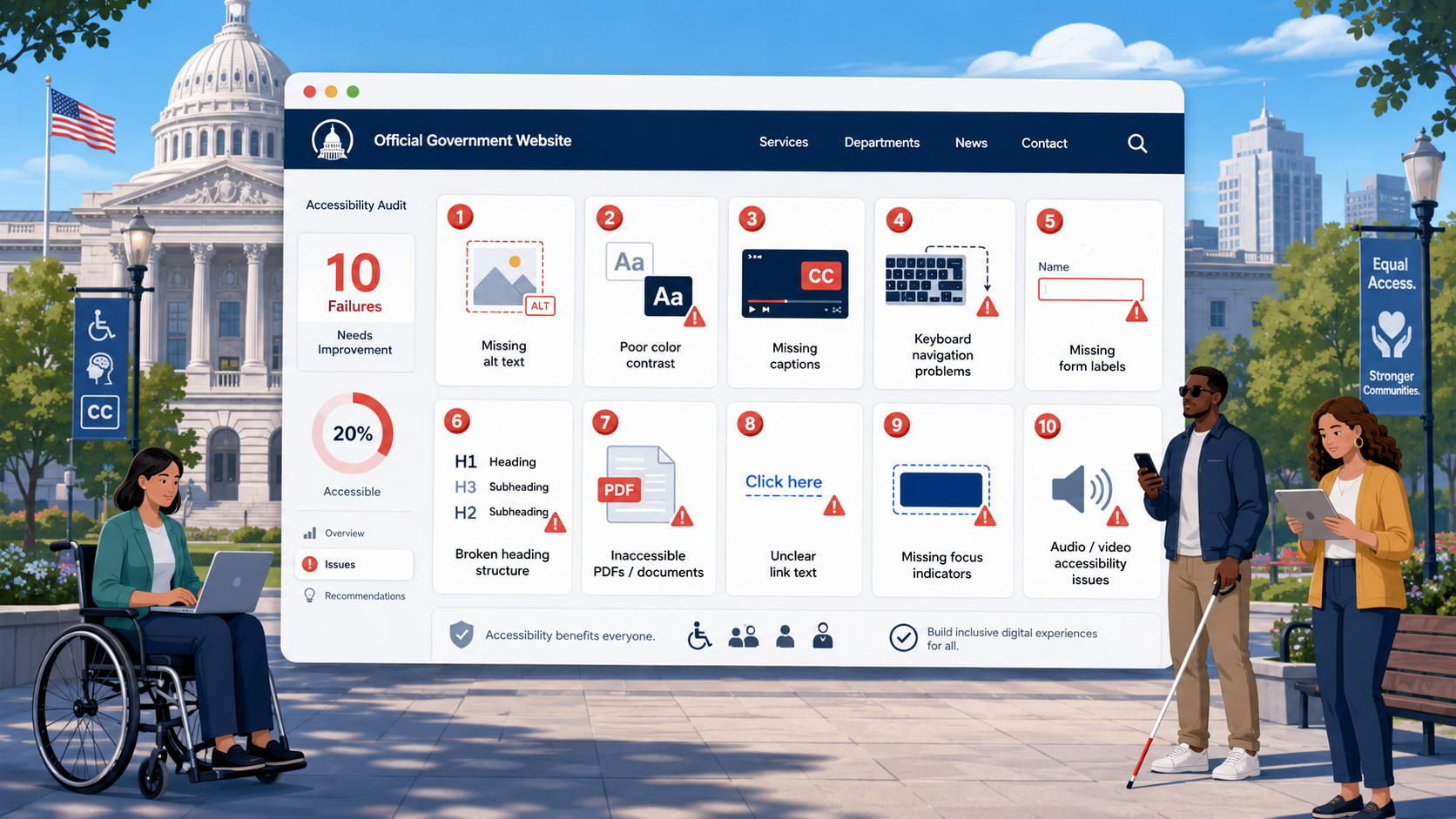
TL;DR: Across thousands of scanned government websites, the same 10 accessibility issues account for the overwhelming majority of WCAG failures: missing alt text, inaccessible PDFs, poor color contrast, missing form labels, no skip navigation, inaccessible carousels, keyboard traps, missing page titles, inaccessible tables, and auto-playing media. Each is fixable - usually cheaply - but they tend to multiply over time across CMSes, vendor embeds, and content edits. Under the DOJ’s 2024 ADA Title II rule, eliminating these issues is now a legal obligation for nearly every state and local government in the United States.
If you scan a thousand US government websites, the same problems show up over and over again. The specific page templates differ, the CMSes differ, and the design vintage differs, but the WCAG failures cluster around the same 10 issues. The good news is that fixing these 10 issues gets most government sites a long way toward WCAG 2.1 Level AA conformance. The bad news is that they tend to come back as soon as you stop watching.
This post walks through each, in roughly descending order of frequency, with a focus on what causes them, why they matter, and how to fix them.
1. Missing or Inadequate Alt Text
WCAG criterion: 1.1.1 Non-text Content (Level A).
This is the most common accessibility failure on the web, period, and government sites are not an exception. Common variants include images with no alt attribute at all, images with alt="image" or alt="picture" (useless), images with overlong essay-length alt text, and decorative images with descriptive alt text that just adds noise.
Why It Happens
CMS editors copy and paste images from other sources without filling in the alt field. WYSIWYG editors do not enforce alt text. Themes and templates sometimes strip or override alt text. Decorative images get alt text because the editor was told “every image needs alt text” without nuance.
How to Fix It
- Decorative images:
alt=""(empty alt, not omitted). - Informational images: short descriptive alt text capturing the meaningful information.
- Functional images (image buttons, image links): alt text describing the function.
- Complex images (charts, infographics): short alt plus a long description nearby in the page.
See the full guide to fixing missing alt text for patterns and CMS-specific workflows.
2. Inaccessible PDFs
WCAG criteria: Multiple (1.1.1, 1.3.1, 2.4.x, 3.1.1, and more).
PDFs are the dirty secret of government accessibility. A typical state agency site has thousands of PDFs - meeting minutes, public notices, application forms, fact sheets, annual reports - many of which were created by scanning paper documents and never tagged.
Why It Matters
A scanned image-only PDF is invisible to screen readers. A PDF created in Word and exported without preserving structure may have no headings, no reading order, and no alt text on embedded images. A PDF form without form-field tagging cannot be filled out with assistive technology.
How to Fix It
The order of operations:
- Inventory. Find every PDF on the site.
- Prioritize. Identify which are still in use, which are forms, and which are mission-critical.
- Replace. Convert frequently used PDFs to HTML pages where possible. HTML is more accessible by default and easier to keep accessible.
- Remediate. For PDFs that must stay PDFs, tag them with proper headings, alt text, reading order, and form field labels. Use Adobe Acrobat Pro, CommonLook, or equivalent tools.
- Establish a policy. Require that new PDFs be born accessible.
See the full guide to PDF accessibility for government.
3. Poor Color Contrast
WCAG criteria: 1.4.3 Contrast (Minimum, AA) and 1.4.11 Non-text Contrast (AA).
State and local government brand palettes often fail contrast at default sizes. Light gray placeholder text. Brand-colored links on white backgrounds. Buttons whose background and text combination falls just short of 4.5:1. Footer text that is barely visible.
Why It Happens
Brand guidelines were set without contrast testing. Designers pick colors that look good without checking the math. CMSes inherit brand colors without enforcing minimum contrast. Hover states and disabled states get particularly bad.
How to Fix It
Pick a palette that passes contrast at body-text sizes. Use a contrast checker (Stark, WebAIM Contrast Checker, browser DevTools) at every design step. Document the approved combinations in the design system. Audit existing pages with axe or Lighthouse, fix the failures, and add CI checks to catch regressions.
See the color contrast guide for government websites.
4. Missing or Inadequate Form Labels
WCAG criteria: 1.3.1 Info and Relationships (A), 3.3.2 Labels or Instructions (A), 4.1.2 Name, Role, Value (A).
Forms are the single most common transactional surface on government sites - permit applications, license renewals, online payments, public comment submissions, FOIA requests. Common failures include inputs with no label at all, labels that are visually present but not programmatically associated with their input, placeholder-only “labels” that disappear when the user starts typing, and missing error messages.
Why It Matters
A screen reader user encountering an unlabeled input hears “edit blank” with no idea what to type. A keyboard user encountering placeholder-only labels has no way to confirm what field they are on. A user encountering an error has no way to find or understand it without a programmatically associated error message.
How to Fix It
- Use real
<label>elements explicitly associated with their<input>viaforandid. - Make labels visible above or beside the input - not placeholder-only.
- Mark required fields with both a visual indicator and
aria-required="true". - Associate error messages with their fields using
aria-describedby. - Provide an error summary at the top of long forms.
5. No Skip Navigation
WCAG criterion: 2.4.1 Bypass Blocks (A).
Many government sites have no “Skip to main content” link, or have one that is broken (jumps to the wrong element, is hidden even when focused, or points to a non-existent anchor).
Why It Matters
Without a skip link, keyboard users and screen reader users have to tab through every link in the header, navigation, utility menu, language switcher, and search box on every page before reaching content. On a site with 30+ header links, this is a substantial barrier.
How to Fix It
Add a skip link as the first focusable element. Make it visually hidden until focused, then prominent on focus. Confirm it actually moves focus to the main content. See our keyboard accessibility guide for a working pattern.
6. Inaccessible Carousels and Sliders
WCAG criteria: Multiple (2.1.1, 2.2.2, 1.4.13, and others).
Image carousels on government homepages are a perennial offender. Common failures:
- Carousel auto-rotates with no way to pause (1.4.4, 2.2.2).
- Arrow controls are not keyboard accessible.
- Slide indicators are unlabeled.
- Focus is lost when slides change.
- Tooltips and hover content cannot be dismissed (2.1.1.3).
Why It Matters
Beyond accessibility, carousels are usability disasters - click-through rates on later slides are typically under 1 percent. They exist mostly to satisfy multiple internal stakeholders who all want their content “above the fold.”
How to Fix It
The best fix is to remove the carousel and replace it with a small set of static featured content. If you must keep it, use an accessible carousel pattern with pause/play controls, keyboard navigation, proper labeling, and no auto-rotation by default.
7. Keyboard Traps and Missing Focus Indicators
WCAG criteria: 2.1.1 Keyboard (A), 2.1.2 No Keyboard Trap (A), 2.4.7 Focus Visible (AA), 2.4.11 Focus Not Obscured (AA, WCAG 2.2).
Keyboard accessibility failures are common and varied: modals that capture focus and refuse to release it, custom date pickers that trap arrow keys, embedded PDF viewers that swallow Tab, cookie banners that cover focused content, focus styles removed with outline: none and never replaced.
Why It Matters
A keyboard trap effectively locks an entire population out of the page. A missing focus indicator means users do not know where they are. Both are critical failures.
How to Fix It
- Never use
outline: nonewithout a replacement. - Build modals that trap focus correctly (Tab wraps inside the modal, Escape dismisses).
- Confirm every interactive component is operable from the keyboard.
- Test with a keyboard-only walkthrough every release.
See the keyboard accessibility guide for the full picture.
8. Missing or Generic Page Titles
WCAG criterion: 2.4.2 Page Titled (A).
Surprisingly common: pages whose <title> element is empty, set to the site name only (“County of Example”), or set to a generic placeholder (“Untitled Document”).
Why It Matters
Page titles appear in browser tabs, bookmarks, search results, and screen reader announcements. They are how users orient themselves across multiple open pages. A page titled “County of Example” twelve tabs over is indistinguishable from any other page on the site.
How to Fix It
Every page should have a title that:
- Describes the page contents specifically.
- Differs from every other page on the site.
- Has the most specific information first (“Apply for a Building Permit | County of Example”, not the other way around).
Most CMSes generate page titles from the H1 by default. Configure them correctly once, and they stay correct.
9. Inaccessible Data Tables
WCAG criteria: 1.3.1 Info and Relationships (A), 1.3.2 Meaningful Sequence (A).
Government sites publish a lot of tabular data: budget tables, voter information, contact directories, schedules, statistics. Common failures:
- Tables created with
<div>elements styled to look like tables. - Tables with no
<th>elements. - Tables using
<th>for cells that are not headers. - Tables without
<caption>elements. - Complex tables (multiple header rows, merged cells) without
scopeorheadersattributes. - Layout tables (tables used for visual layout, not data).
Why It Matters
A screen reader user navigating a table relies on header announcements to make sense of the data. A table without proper header markup is read cell-by-cell with no context.
How to Fix It
- Use semantic
<table>,<thead>,<tbody>,<th>, and<td>elements. - Add
<caption>describing what the table contains. - Use
scope="col"andscope="row"to associate headers with cells. - For complex tables, consider whether they can be split into simpler tables.
- Never use tables for visual layout.
10. Auto-Playing Media and Missing Captions
WCAG criteria: 1.4.2 Audio Control (A), 1.2.2 Captions (Prerecorded, A), 2.2.2 Pause, Stop, Hide (A).
Video that plays automatically with sound is a WCAG failure unless it can be paused, stopped, or muted within 3 seconds. Background videos on homepages, embedded news videos, training videos, and meeting recordings all have to satisfy this requirement.
Captions are a separate failure. YouTube auto-captions do not meet WCAG; they need human review.
Why It Matters
Auto-playing video disrupts screen reader use, makes the page unusable in shared environments (libraries, offices, transit), and shifts focus unpredictably. Missing captions exclude deaf and hard-of-hearing users entirely.
How to Fix It
- Never auto-play video with sound on page load.
- Provide pause/stop controls.
- Caption every video, accurately, with human review.
- Add transcripts for audio-only content.
See the video and audio accessibility guide for the full requirements.
Honorable Mentions
A few issues that did not quite make the top 10 but are extremely common:
- Vague link text. “Click here” and “read more” repeated across a page make link navigation useless for screen reader users.
- Heading hierarchy violations. Skipping from
<h2>to<h4>, or having multiple<h1>elements per page. - Language not specified. Missing
lang="en"on the<html>element. Common on government sites that also serve Spanish or other languages. - Forms without error prevention. Long forms that delete user input on submit if there is an error.
- Pop-ups that cannot be dismissed. Email subscription overlays, survey prompts, and chatbots without an accessible close button.
Why These Keep Coming Back
The most frustrating thing about these 10 issues is not that they exist - it is that they keep coming back even after you fix them. Common causes of regression:
- CMS updates that change template markup.
- Plugin or extension installs that add new widgets.
- Vendor embed swaps when one vendor replaces another.
- Content edits by staff who paste in HTML from external sources.
- Departmental microsites built outside the main site by teams without accessibility training.
- Marketing campaigns that add tracking pixels, popups, or carousels.
Every government site needs a process for catching these regressions early, before a resident or a regulator does. Baking accessibility into the next redesign is the most durable fix.
Where to Start If You Are Behind
If your site is currently failing many of these, here is a practical 90-day plan:
- Week 1-2: Run a baseline audit (automated plus manual on top templates). Inventory PDFs.
- Week 3-4: Publish a current accessibility statement acknowledging known issues and timeline. Fix any easy global wins (skip link, focus styles, page titles).
- Week 5-8: Fix template-level issues (form labels, contrast, semantic markup, table structure). Train content editors.
- Week 9-10: Tackle the alt text backlog and start PDF remediation.
- Week 11-12: Replace or remove the worst legacy widgets (carousels, auto-playing media, inaccessible embeds).
- Ongoing: Monitor and prevent regression.
For more, see the government website compliance checklist and the audit guide.
Don’t Just Fix - Stay Fixed
The hardest part of accessibility is not fixing these 10 issues. It is keeping them fixed after the audit ends. Every plugin install, content paste, vendor swap, and departmental microsite has the potential to reintroduce them.
Govzu continuously monitors government websites for all 10 of these common failures, alerts your team when they reappear, and shows you exactly which page, which element, and which WCAG criterion is affected - so the accessibility work you have already done keeps protecting the residents who depend on it.