
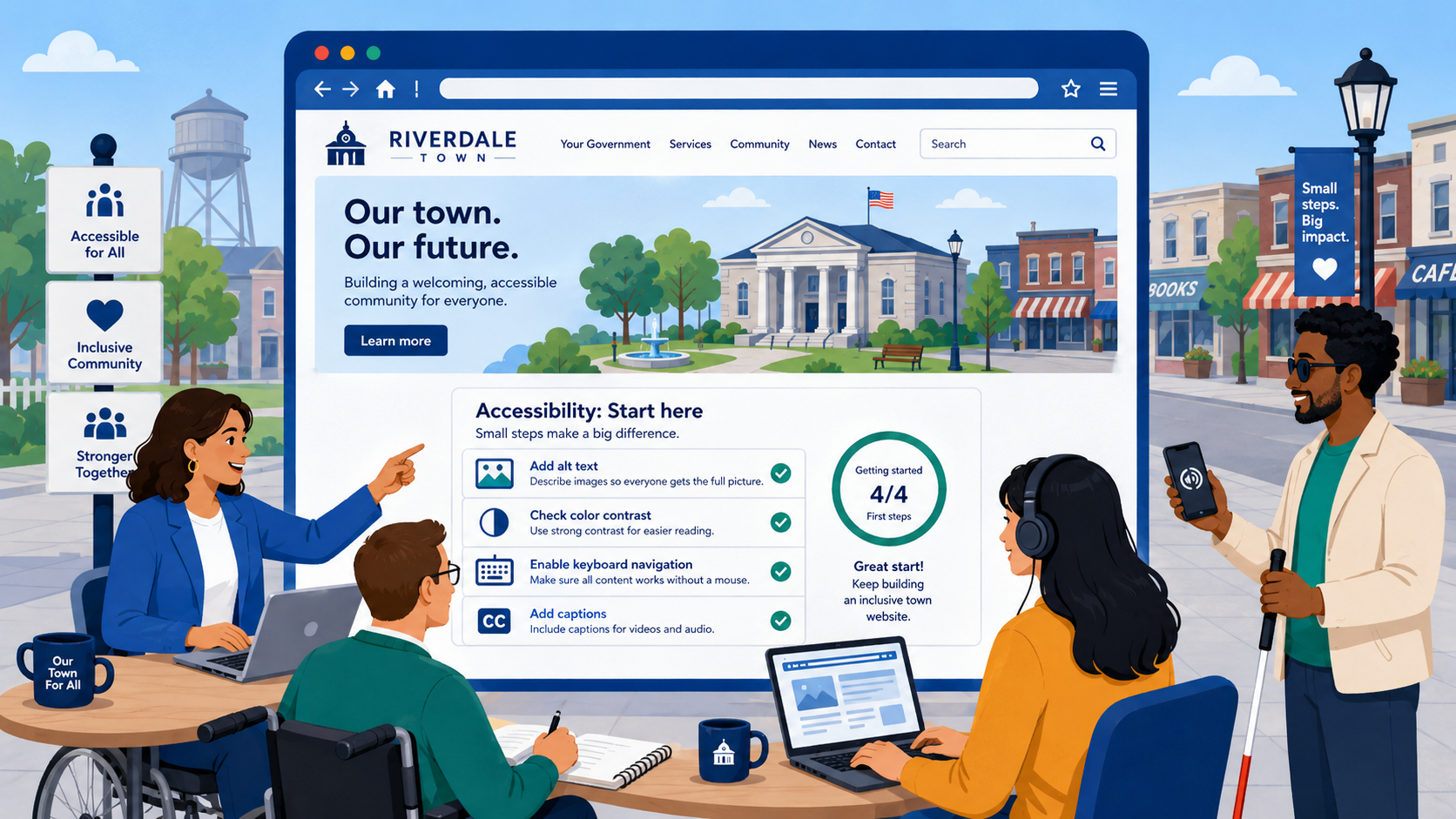
TL;DR: The DOJ’s ADA Title II rule gives small local governments (under 50,000 population) until April 24, 2027 to bring their websites into WCAG 2.1 AA compliance. That deadline is closer than it feels. You don’t need to fix everything at once — but you need to start now, triage by impact, and document your progress.
The Department of Justice’s final rule on web accessibility under Title II of the Americans with Disabilities Act took effect in June 2024. For small local governments — cities, towns, counties, special districts, and public libraries serving populations under 50,000 — the compliance deadline is April 24, 2027. That’s not far away, and the consequences of non-compliance include federal complaints, DOJ investigation, and potential litigation.
Here’s the harder truth: many small government websites aren’t starting from a good baseline. They were built years ago on whatever platform the budget allowed, updated sporadically, and nobody on staff was ever specifically tasked with accessibility. That’s not an excuse — it’s the starting point.
Why Small Governments Struggle With Accessibility
The accessibility gap in small local government isn’t usually the result of bad intentions. It’s structural:
No dedicated web staff. In a city of 8,000 people, the person who updates the website is probably also handling IT support, printing agendas, and three other things. Web accessibility has never been in their job description.
Websites built and forgotten. Many small government sites were launched five to ten years ago by a vendor who set everything up and left. The CMS may be outdated. The theme may not have been designed with accessibility in mind. Nobody has audited it since the ribbon cutting.
Mix of platforms. The main city site might be on one CMS, the utility billing portal is a third-party vendor product, the library uses an integrated library system with its own catalog interface, and the parks department still has a separate site from 2014. Each is its own remediation project.
Limited budget. Accessibility remediation and redesign cost money. Small governments have to be strategic about where they invest.
PDF proliferation. Years of agendas, minutes, forms, and reports have accumulated on the site as PDFs — most of them scanned or created without accessibility in mind.
None of these are insurmountable. But they mean you need a plan that’s realistic about what you can do, in what order.
The Legal Baseline You’re Working Toward
The DOJ’s final rule (28 C.F.R. Part 35) specifies WCAG 2.1 Level AA as the technical standard for web accessibility under ADA Title II. WCAG 2.1 AA is published by the World Wide Web Consortium (W3C) and covers four principles:
- Perceivable: Content must be presentable to all users, including those who can’t see images or hear audio.
- Operable: All functionality must be operable without a mouse.
- Understandable: Content and interfaces must be understandable.
- Robust: Content must be interpretable by a wide range of assistive technologies.
The current best practice is WCAG 2.2 AA (the 2023 update), which adds requirements for visible focus indicators and better support for users with cognitive disabilities. Meeting 2.2 AA means you’ve met 2.1 AA. Targeting 2.2 is worth the minimal additional effort.
Section 508 of the Rehabilitation Act (29 U.S.C. § 794d) applies to federal agencies and federally funded programs. If your city or county receives federal funding (and most do — through CDBG, transportation grants, public safety grants, etc.), Section 508 compliance may also apply to some of your digital properties. The current Section 508 technical standard (36 C.F.R. Part 1194) references WCAG 2.0 AA, making WCAG 2.1/2.2 AA compliance the right target for both obligations.
Step 1: Know What You Have
Before you fix anything, you need to know what you’re dealing with. Conduct an inventory of every web property your agency owns or controls:
- Main city or county website.
- Online permit or licensing portal.
- Utility billing and payment portal.
- Public library website and catalog.
- Parks and recreation registration system.
- Any department-specific microsites.
- Economic development or tourism sites.
- Senior services or social services portals.
- Any staff-facing web tools that residents also use.
For each property, note:
- The platform or CMS it runs on.
- Who is responsible for updating it.
- Roughly how much resident traffic it receives.
- When it was last updated or redesigned.
This inventory will drive your prioritization. It’s also useful documentation if a complaint is ever filed — it shows you understood the scope of the problem.
Step 2: Run a Free Baseline Scan
You don’t need to hire a consultant to get a first picture of where you stand. WAVE (wave.webaim.org), maintained by WebAIM at Utah State University, gives you a free accessibility scan of any public web page in seconds. It identifies:
- Missing or empty alt text on images.
- Missing form labels.
- Contrast failures.
- Heading structure issues.
- Missing page titles.
- Empty links.
WAVE identifies only the automatically detectable subset of WCAG failures — roughly 30-40% of all accessibility issues can be found this way. Manual testing is required for the rest. But WAVE is a fast, free way to get a baseline count and category breakdown.
Run WAVE on your homepage, your most-used form pages, and a few interior pages. Note the error counts. This is your starting point.
The Accessibility Checker at accessibilitychecker.org and Google Lighthouse (built into Chrome DevTools) are additional free options for automated scanning.
Step 3: Prioritize by Traffic and Criticality
You cannot fix every page on your site simultaneously, and you don’t have to. The legal standard allows for a phased approach as long as you’re making genuine progress.
Prioritize pages in this order:
First priority — pages residents depend on for critical services:
- Homepage
- Contact page
- Emergency information and alerts
- Permit and license applications
- Utility bill payment
- Public meeting notices, agendas, and minutes
- Job postings and employment applications
Second priority — high-traffic general pages:
- Department landing pages
- Service descriptions and eligibility information
- Forms of any kind
- Maps and location information
Third priority — lower-traffic informational content:
- News archives
- Historical documents
- Background or about-us pages
When a resident with a disability cannot access your permit application or pay their water bill online, that’s an immediate service equity failure. That’s where your effort should go first.
Step 4: Fix the Quick Wins
Many of the most common accessibility failures take less than a day to fix per page. These should be your first pass:
Alt text for images. For each image on a page, add a description in the alt attribute that conveys what the image shows or communicates. Decorative images (dividers, background photos) get alt="". The homepage hero photo of Town Hall should say something like alt="Town Hall building exterior on Main Street".
Page titles. Every page should have a unique, descriptive <title> element. “City of Riverside — Building Permits” is useful. “Page” is not. This is usually a one-line change per page in your CMS.
Skip navigation link. A link at the very top of the page, visible when it receives keyboard focus, that says “Skip to main content” and jumps to the main content area. This allows keyboard and screen reader users to bypass the navigation menu on every page. Most CMS themes can add this with a small template edit.
Form labels. Every form field needs a visible <label> element associated with it using the for attribute matching the input’s id. Placeholder text inside the field does not count as a label — it disappears when the user starts typing.
These four items alone eliminate a large share of the most common failures found on small government websites, and they’re achievable with a few hours of attention per page.
Step 5: Address Structural Issues
After the quick wins, the remaining issues often require changes to your CMS theme or templates rather than page-by-page edits:
Heading hierarchy. Your site should have exactly one H1 per page (the main page title). Section headings use H2. Subsection headings use H3. Many government sites use headings for visual sizing rather than logical structure — an H3 stuck in the middle of the page to make text look smaller, a skipped H2 followed immediately by an H3. Run WAVE on a dozen pages and look at the heading structure it reports.
Color contrast. Text that doesn’t meet the 4.5:1 contrast ratio for body text (3:1 for large text and UI components) is a WCAG 2.1 Level AA failure. Contrast failures are usually a template or CSS issue — once fixed in the stylesheet, they’re fixed everywhere. Use the WebAIM Contrast Checker (webaim.org/resources/contrastchecker) to test specific color pairs.
Keyboard navigation. Test your site’s navigation using only the Tab, Shift+Tab, Enter, and arrow keys. Can you reach everything? Can you operate your dropdown menus? If not, this likely requires a template or JavaScript change.
Step 6: Handle Documents
Inaccessible PDFs are one of the biggest accessibility failure vectors for small local governments — and one of the areas where the backlog accumulates fastest. Years of agendas, minutes, budget documents, permit forms, and public notices live on government sites as scanned PDFs that screen readers cannot read at all.
A pragmatic approach:
Stop creating new inaccessible PDFs immediately. Any new document posted to the site should either be an accessible HTML page or a properly tagged PDF. Microsoft Word and Google Docs can export to tagged PDF if you use styles correctly. Adobe Acrobat Pro can add tags to existing PDFs.
Triage the existing backlog by access frequency. Your current fiscal year budget, your active permit applications, and your most-accessed forms should be remediated first. Nobody actually reads the 2011 planning commission minutes, so that can wait.
Consider HTML alternatives. For meeting agendas and minutes, an HTML page is more accessible, more searchable, and easier to maintain than a PDF. Many small governments have moved their meeting documents to web pages with a linked PDF version for those who need to print.
Archive old documents with a disclosure. It is acceptable, under ADA Title II, to note that historical documents in an archive may not meet accessibility standards and to provide a contact for requesting an accessible format. This is not a blanket excuse to ignore accessibility, but it’s a reasonable accommodation for a large backlog of older material.
Step 7: Document Your Progress
Accessibility remediation takes time, and the ADA complaint process exists for residents to raise concerns. If a complaint is filed with the DOJ — or if you receive a demand letter from a law firm — your documentation is your primary evidence that you’re making a genuine, good-faith effort to comply.
Maintain a simple remediation log that captures:
- The date you scanned or audited each page or section.
- The issues identified.
- The fixes made and when.
- Who made them.
- What remains outstanding and your planned timeline.
A spreadsheet is sufficient. This log also helps you brief elected officials or department heads on progress, and serves as the basis for your accessibility statement — which the DOJ’s rule also requires you to publish.
The Role of Your CMS
If your site runs on a platform that fundamentally can’t produce accessible output — a very old version of a proprietary CMS, a site-builder with no semantic HTML output, or a theme with baked-in accessibility failures — remediation may cost more than a redesign.
Platforms like Wix and Squarespace have improved their accessibility support, but they still impose significant constraints. If your CMS is genuinely preventing you from implementing accessible markup, it’s worth getting a cost estimate for rebuilding on a platform with better accessibility support (Drupal, WordPress with a maintained accessible theme, or a modern CMS with accessibility built in).
A redesign is a large project, but if it results in a site that produces clean, accessible output by default — rather than requiring constant per-page remediation — it may be the right long-term investment.
Where to Find Help
Your state digital services office. Many states offer free or subsidized accessibility resources, training, and technical assistance to local governments. Contact your state’s IT office or department of administration.
WebAIM. The Web Accessibility in Mind organization (webaim.org) at Utah State University offers free tools, articles, and paid training focused on web accessibility for institutions.
USDS and 18F resources. The U.S. Digital Service and 18F have published accessible design system components (design.usa.gov) that small governments can use as a foundation for building forms and interfaces.
State library systems. If you’re a public library director, your state library system likely has resources specifically for public library website accessibility.
Local government associations. Many state municipal leagues offer webinars and guidance on ADA digital compliance specifically for member cities and towns.
The April 2027 deadline is approaching. Starting now — even imperfectly, even incrementally — puts you in a far better position than a rushed effort in late 2026. Govzu is built specifically for government web teams, providing continuous accessibility monitoring, issue tracking, and compliance reporting so small municipalities can stay on top of their websites without a dedicated staff member watching every page. Learn more at govzu.com.